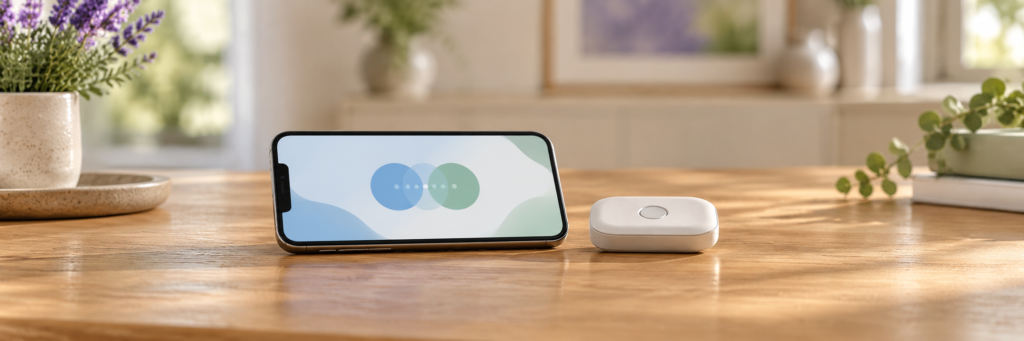
A device can work through its app in the same room without supporting control over the internet. Nearby Bluetooth control and internet-based remote access use different connection paths. When one works and the other does not, start by finding which path your exact model supports.
Picture this: the app worked at home. You tapped a control and the device responded. Later, from somewhere else, the app opens normally—but nothing happens. Your phone is online. The device is charged. So what changed?
The word app-controlled can hide an important distinction. It describes where the controls appear, not every connection needed to deliver a command. This guide explains that distinction and gives you a way to investigate a failed connection without repeatedly resetting everything.
The app is the dashboard; the connection is the route
An app provides the buttons you see. A separate communication path carries those instructions to the hardware. For nearby control, the path may be as simple as a phone communicating with a device over Bluetooth.
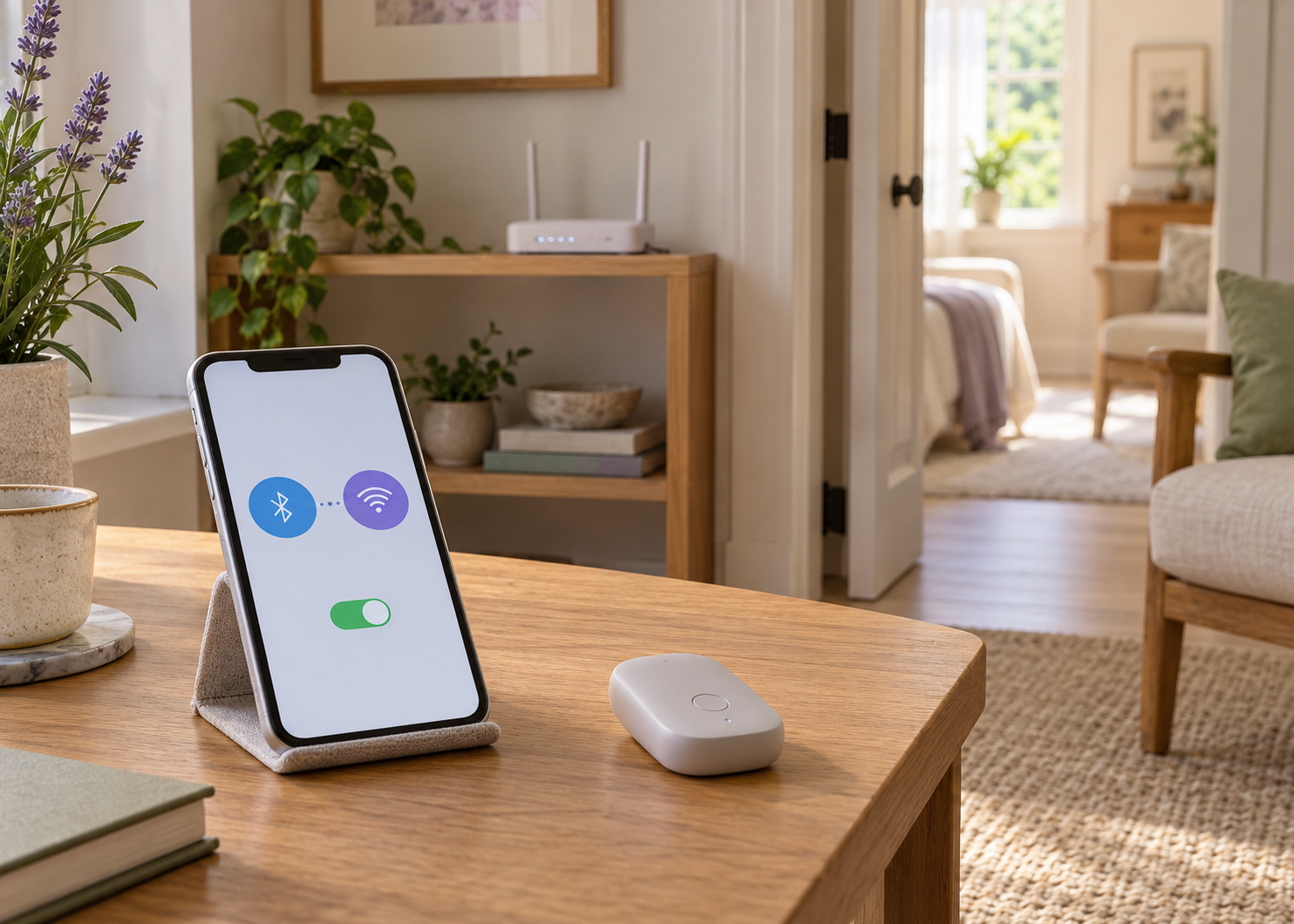
Internet-based access needs more. A Bluetooth device can be connected to an internet service through a gateway—a bridge between the two communication systems. A nearby phone or a separate hub can perform that role, depending on the design. Other devices may connect directly through Wi-Fi. These are possible architectures, not confirmed features of any particular model.
The Bluetooth SIG explanation of internet gateways describes how such a bridge translates between internet requests and Bluetooth interactions. The important point for an owner is simpler: a successful local connection does not establish that a complete internet route exists.
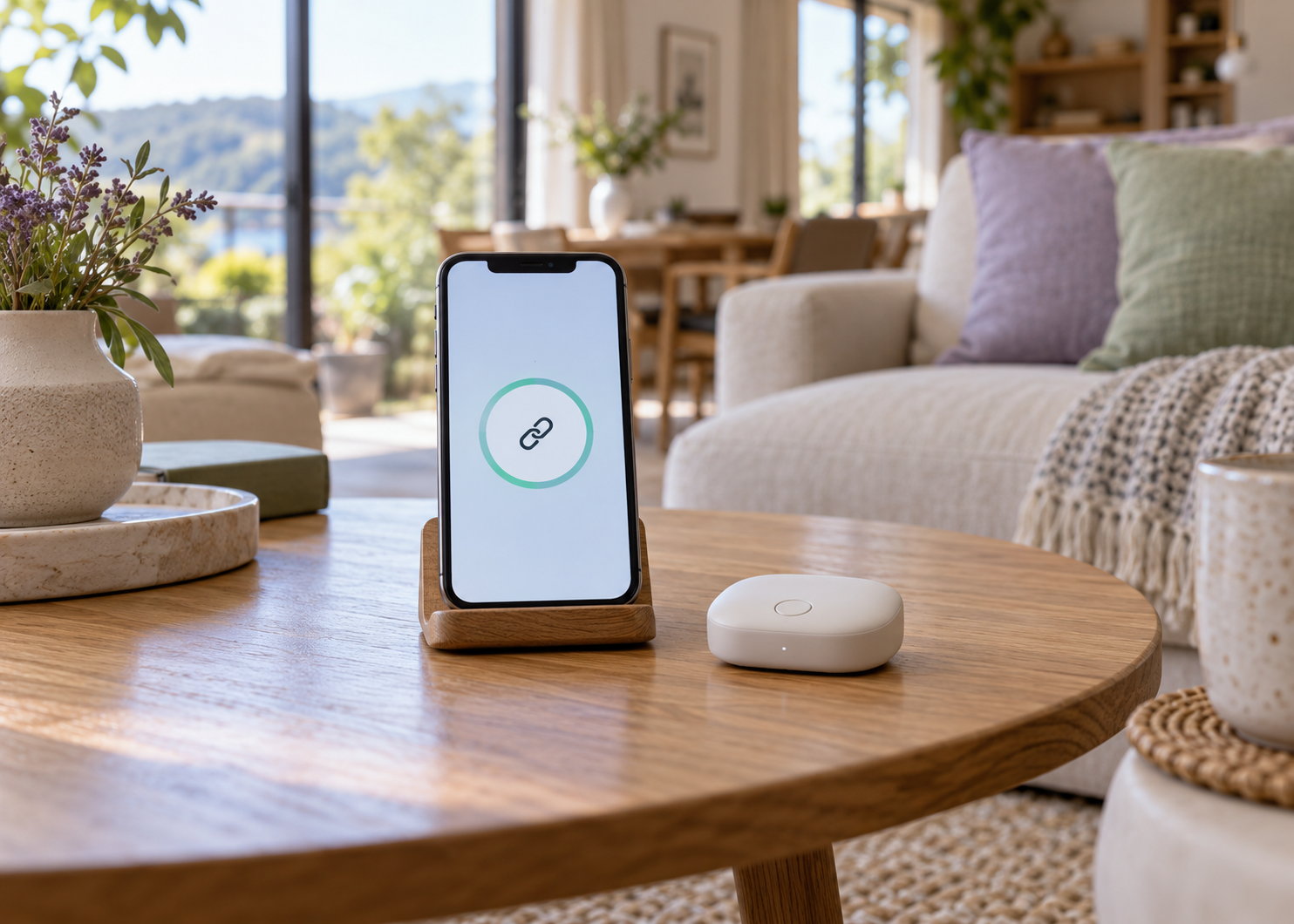
Nearby example: phone → Bluetooth → device.
Internet example: remote phone → internet service → nearby phone → Bluetooth → device.
Why an online phone can still leave the device unreachable
Consider an example that uses a nearby phone as an internet bridge. The remote phone and the nearby phone can both have internet access while the nearby phone has lost its Bluetooth connection to the device. The command gets partway through the route, then stops.
Now reverse the situation. The nearby phone still controls the device over Bluetooth, but its internet connection fails. Local controls may continue while remote access stops, depending on the app. The two failures can look similar from the remote end even though they occur in different places.
Before changing settings, describe the symptom precisely: does the app fail to find the device, does local control fail, or does only remote access fail? Those three observations send you toward different checks.
Start with the local link
Bring the controlling phone close to the device and follow the model’s documented pairing sequence. Check power, the correct app and any required discovery mode. A Bluetooth symbol on the phone does not establish that the accessory is connected to the app.
Apple’s Bluetooth accessory troubleshooting guidance starts with proximity, power and app Bluetooth permission, then covers reconnection when needed. Follow the accessory manufacturer’s directions if they require pairing inside the app rather than through the phone’s general Bluetooth menu. For routine power and maintenance questions, our care and charging checklist explains how to keep model-specific instructions separate.
If local control fails, record that result before testing a remote session. Establishing a reliable nearby connection makes it easier to isolate a later failure.
Check the app’s permission—not just the Bluetooth switch
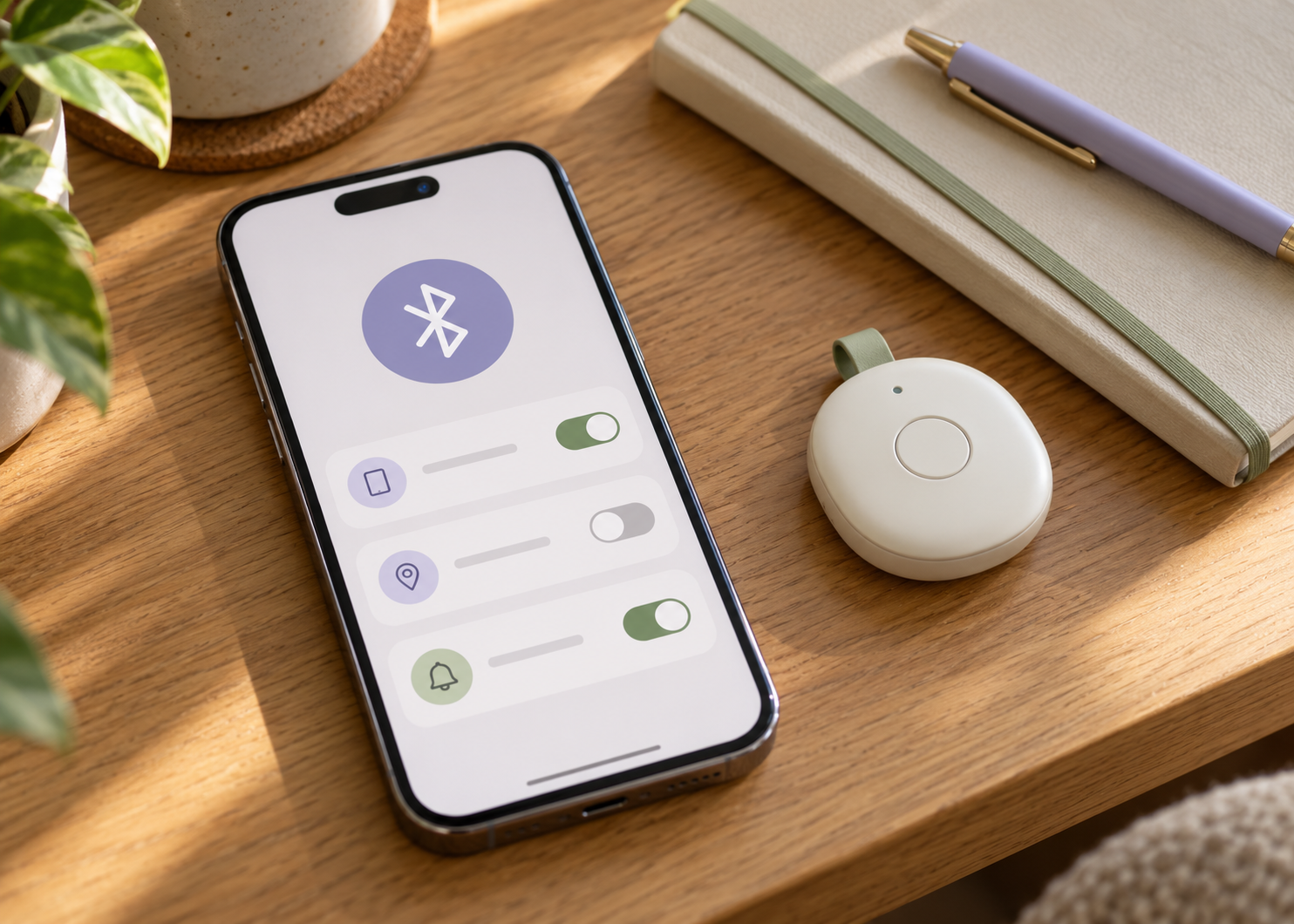
There are separate states to check: Bluetooth enabled on the phone, the app permitted to use it, and the accessory connected through the required procedure. One can be ready while another is not.
On supported Apple devices, Bluetooth access can be reviewed under Settings → Privacy & Security → Bluetooth. Apple’s Bluetooth privacy instructions explain how to allow or revoke that permission. Android’s permission model depends on the app’s target version; apps targeting Android 12 or higher use runtime Bluetooth permissions associated with Nearby devices, as explained in the official Android Bluetooth documentation.
There is no need to approve unrelated permissions just to see whether something changes. Our app permissions and privacy checklist separates hardware access, notifications, account settings and shared access.
Distance is not the only reason Bluetooth drops
A phone working beside a device and failing from another room does not automatically indicate a defect. Range depends on the hardware, signal strength and surroundings. Walls and other obstructions can change the usable connection.
Bluetooth SIG’s range guide explains why there is no single distance that describes every Bluetooth implementation. A general claim such as “Bluetooth reaches ten metres” is not a performance guarantee for your device, room or settings.
Try a controlled comparison: keep the same phone, app and settings, then change only the distance or position. If the system uses a nearby phone as its internet bridge, that phone must also maintain its local connection. Strong internet access cannot repair a broken final Bluetooth link.
A useful test sequence
| What you observe | What to check next | What it does not establish |
|---|---|---|
| The app cannot find the device nearby. | Exact app, model compatibility, power, discovery mode and app permission. | That the internet service is down. |
| Nearby control works; internet-based access does not. | Whether remote access is supported, its setup steps, account state and any required bridge. | That the Bluetooth hardware is faulty. |
| Control drops when the nearby phone moves away. | The local link, obstacles and position of any required bridge. | A guaranteed maximum operating distance. |
| One person can connect; another cannot. | The documented invitation, account and access-sharing process. | That sharing a password is necessary or appropriate. |
After each change, repeat the same small test and note the result. Reinstalling an app, switching networks and restarting both devices at once may restore access, but it leaves you unsure which change mattered—and what to do if the problem returns.
A working connection still needs clear access boundaries
Find out how to end a remote session and remove another person’s access. Closing an app, signing out, unpairing hardware and deleting an account are different actions; the developer’s documentation should explain their effects.
If access is shared, agree on how a session starts and stops, and keep the device’s documented local stopping method available. Our guide to consent and boundaries for shared controls covers the human side of that arrangement.
The store’s website privacy policy describes its website and service practices; do not assume it is also the app developer’s policy. Identify the actual app provider and read the policy that applies to that service.
When to ask for help—and what to send
If the route is still unclear, ask: “Can this exact model receive commands over the internet, and what must remain connected beside it?” That question is more precise than asking whether a product has an app.
For a KissSelf item, contact support with the model name and connection symptom. Include the app name and version, phone operating system, whether nearby control works, and the exact error message. Leave out passwords, payment information and unnecessary personal screenshots. Ask the app developer about account or service errors when those fall outside the retailer’s documentation.
A little clarity
Frequently asked questions
Four quick answers about distance, connection and control.
01Does app-controlled mean controllable from anywhere?
No. It can describe nearby phone control. Internet-based access must be explicitly supported and configured for the exact device and app.
02Can better Wi-Fi increase Bluetooth range?
Not directly. They are different links. Better internet access may help the internet portion of a supported system, but it does not establish a stronger local Bluetooth connection.
03Must a second phone stay beside the device?
Only if that is how the system is designed. Some arrangements use a phone, others a hub or direct network connection. Follow the documented layout rather than assuming the example connection path applies to every model.
04Should I reset everything first?
Start with the documented basic checks and a record of the symptom. Use reset instructions when appropriate for the model, with an understanding of any settings or access permissions the reset changes.
The most useful question is where the command stops. Once you can distinguish local pairing, internet access and shared permission, a silent device becomes a problem you can investigate one connection at a time.